
Nothing kills the mood faster than hitting “Start”… and getting a black screen. If your camera not working in browser, it’s almost never “broken forever.” It’s usually one of three things: the site is blocked, the browser picked the wrong camera, or another app is hogging your webcam.
This checklist is built for 1-on-1 chats, so it’s fast and practical. Start at step 1 and stop as soon as you’re back on camera.
camera not working in browser: the 90-second “start here” fix
Before you dive into settings, do this quick reset loop (yes, it sounds basic — but it works a lot):
- Refresh the page (Ctrl/Cmd + R).
- Close the chat tab and reopen it.
- Unplug/replug your camera if it’s external.
- Restart the browser (fully quit, don’t just close the window).
If the camera comes back after any step, you’re done. If not, keep going.
Step 1: check the browser permission (the most common cause)
Browsers won’t use your camera unless you explicitly allow it for the site. If you hit “Block” once, the browser remembers. The fix is simply switching the permission back to Allow.
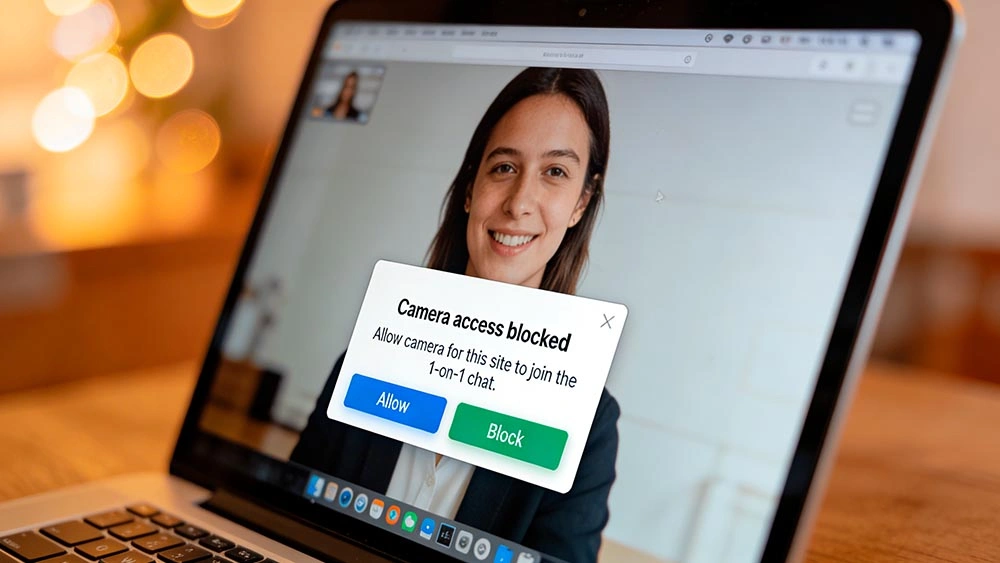
- Chrome / Edge: click the padlock icon in the address bar → Site settings → Camera → Allow. If you need the official steps: use your camera and microphone in Chrome (desktop).
- Firefox: click the permissions icon (or padlock) near the address bar → Camera → Allow. Full guide: manage camera and mic permissions in Firefox.
- Safari (Mac): Safari → Settings → Websites → Camera → choose Allow for the site. Apple’s guide: control access to the camera on Mac.
Quick tell: if you never saw a permission pop-up at all, you were probably blocked earlier. That’s why step 1 matters.
Step 2: make sure the browser is using the right camera
On many laptops you’ll have multiple “cameras” listed (built-in webcam, virtual camera, capture card, etc.). If the browser picks the wrong one, you get a black screen.
- Open the site’s camera selector (usually inside the call screen or settings).
- Switch the camera device and wait 2–3 seconds.
- If you see options like OBS Virtual Camera or similar and you don’t use it — avoid it.
If you’re doing 1-on-1 chats regularly, keep it simple: one real camera device, one browser tab, no extra “virtual” tools unless you truly need them.
Step 3: close apps that steal the webcam
This one is sneaky. Your camera can be “working” but unavailable because another app already grabbed it.
- Close Zoom, Discord, Telegram, WhatsApp Desktop, OBS, Skype, Teams, and any “camera” utilities.
- On Mac: quit apps fully (Cmd + Q), not just close the window.
- On Windows: check the system tray for apps still running in the background.
Then restart your browser and try again. If you suddenly get a permission prompt — that’s a good sign.
Step 4: turn off privacy shutters and “kill switches”
Some laptops have a physical camera shutter or a function key toggle that disables the webcam. If your screen is black everywhere (not just in the browser), this is a prime suspect.
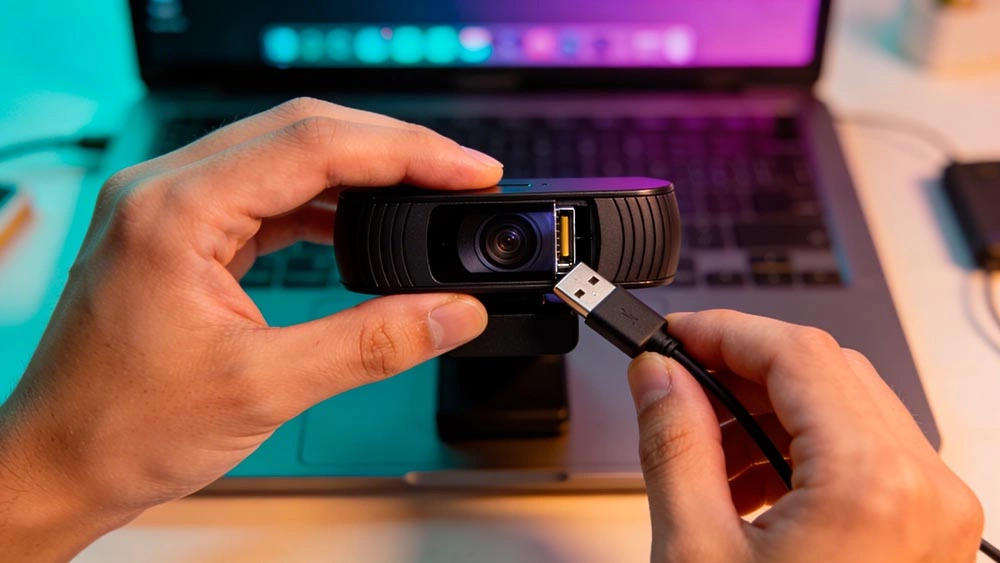
- Check for a small slider next to the webcam lens (open it).
- Check your keyboard for a camera icon key (often Fn + a function key).
- If you use an external webcam, try a different USB port.
Step 5: if it works in other apps but not in the browser
If your webcam works in the system camera app, but the browser refuses, it’s almost always permission or browser settings.
- Double-check site permission (Step 1) and device selection (Step 2).
- Try a different browser for a quick test (Chrome ↔ Firefox).
- Disable extensions that interact with privacy, ads, or scripts (ad blockers, “privacy guards”).
Step 6: if it works in the browser but looks “off”
Sometimes “camera not working” is actually “camera working, but terrible.” Here are fast fixes that make 1-on-1 chats feel normal again:
- Too dark: add front light (lamp or window).
- Blurry: wipe the lens (seriously).
- Low angle: raise the laptop a bit so you’re not in chin-cam mode.
If you want a quick start routine for better first impressions, start with the basics from post 0001: how to start fast without overthinking.
When to stop troubleshooting and just reset the whole thing
If you’ve done steps 1–4 and nothing changes, do the “clean reset”:
- Restart your computer.
- Open only one browser (no extra profiles/windows).
- Use a simple, clean starting point and try again: https://1on1cam.us/.
It sounds dramatic, but it removes hidden background conflicts and “stuck” permissions in one move.
Last check: pick the right place to chat
If you’re coming from random chat sites, some are simply more stable than others. For a quick checklist of what to look for in an Omegle alternative, see post 0003: what to look for in a 1-on-1 chat site.